
Extension guide
Notion to PDF Chrome Extension: Export Pages Locally
A Notion to PDF Chrome extension turns the page you are viewing into a repeatable PDF workflow. Learn how to choose, install, review permissions, set export rules, protect the data boundary, and diagnose incomplete output.
Short answer
What a Notion to PDF Chrome extension should do
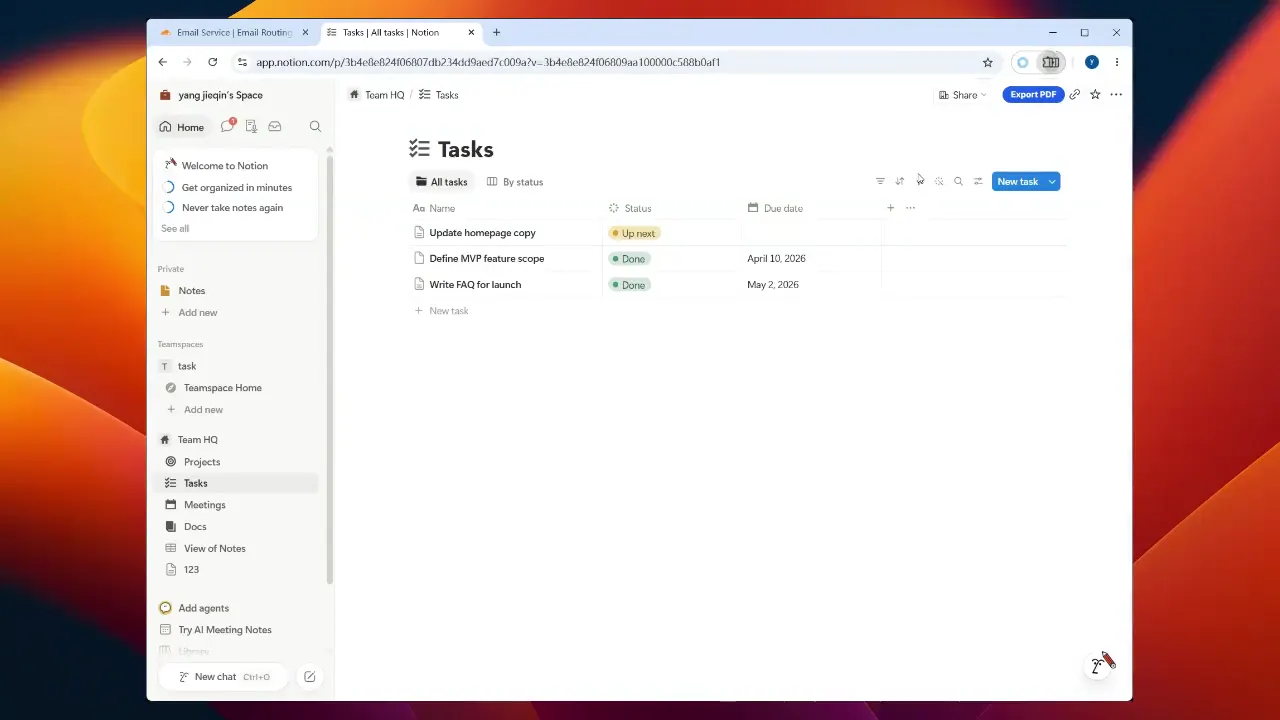
A useful Notion to PDF Chrome extension starts from the active page, adds a visible export action, prepares a print-focused copy in the browser, and lets you review the file before download. The value is repeatability: paper, orientation, margins, scale, page numbers, header or footer text, watermark, and filename rules can be reused.
Before installing, check browser support, requested permissions, the privacy explanation, and the last update. The listing should explain what happens to the page you view. It should not imply a silent workspace backup, a way around Notion permissions, or an automatic upload of the generated PDF.
- Choose native Notion export for a quick one-off file when the built-in PDF result already looks right.
- Choose browser print when you only need paper, scale, orientation, and margin controls.
- Choose an extension when you repeat exports and need predictable layout, filename, progress, and recovery steps.
Before you install
Choose a Notion to PDF Chrome extension for the job
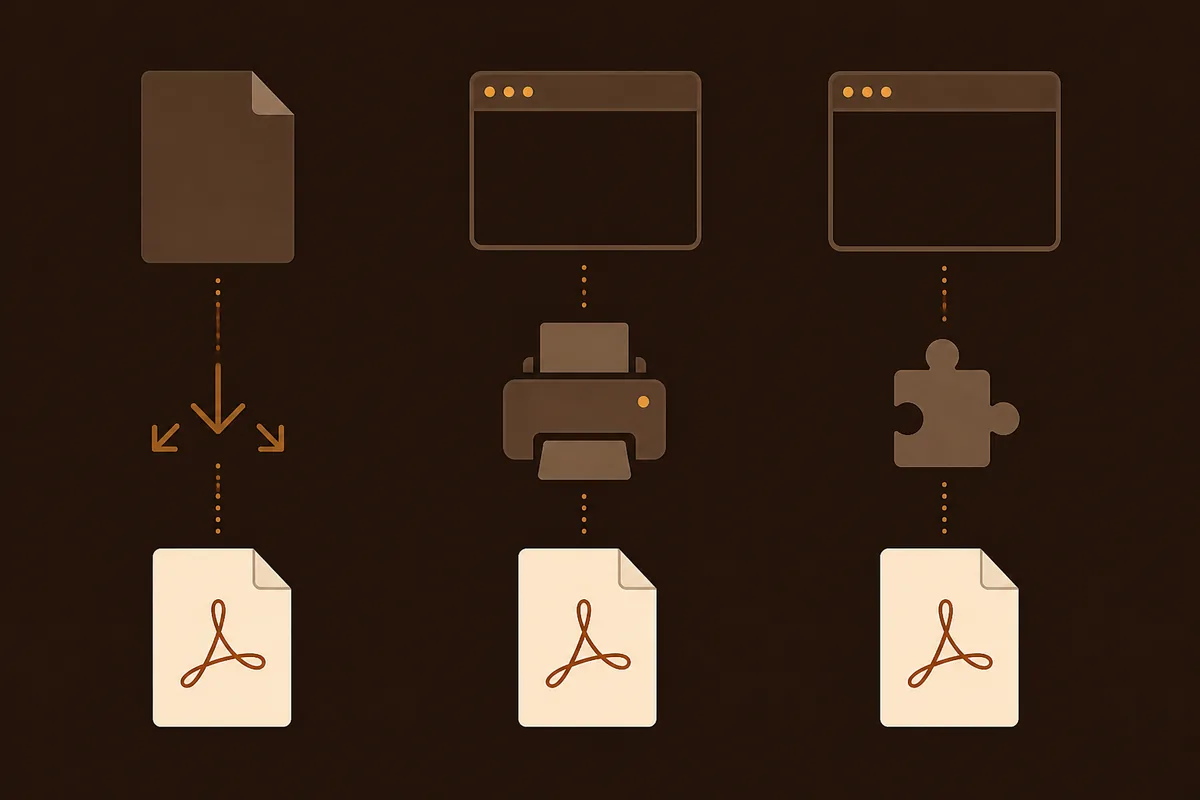
Search results mix a Chrome Web Store listing, a product page, and a general export tutorial. A listing gives version, developer, permission, and support details; a product page explains workflow and paid boundaries; a tutorial compares native export, browser printing, and capture tools. Use each source for its proper role.
Start with the output you need. A text-first PDF is useful for search, copy, handoff, and printing. A screen-faithful capture suits a wide board but may behave like an image. For repeat exports, look for real page breaks, selectable text, intact tables, and a preview that reveals missing blocks before sharing.
| Check | Why it matters | Good evidence |
|---|---|---|
| Active page scope | Separates export from workspace backup | The listing says it reads the open page |
| PDF output | Shows whether the file is searchable | Selectable text, stable breaks, and preview |
| Settings | Makes repeat exports consistent | Paper, scale, headers, footers, and filenames |
| Privacy | Separates page content from account data | A local-processing statement and support link |
| Browser support | Avoids a mismatched install | Current Chrome or Edge listing |
Step 1
Install the extension and review its permissions
Install from the Chrome Web Store or official Edge Add-ons listing, not an unknown mirror. Confirm the publisher, version, update date, support link, and privacy disclosure. An exporter may need active-tab access to read the rendered page and add an action; that is different from reading every site or uploading the document.
Pin it if you will use it often. Test a short page with text, one image, and a table. Confirm that the action appears, the page remains usable, and the PDF contains the visible content before trying a long page.
Open the official listing
Use the Chrome Web Store or Edge Add-ons page linked by the product site. Check the publisher, version, update date, support route, and privacy policy before you select Add to Chrome or Get.
Read the permission prompt
Make sure the requested access matches the active-page workflow. If the prompt is broader than the page export needs, pause and read the developer's explanation before continuing.
Return to a Notion page
Open a page you are allowed to view and wait for its title, images, table rows, toggles, and embeds to finish rendering before testing the new action.
Run a small test
Export a short page first. Open the PDF, search for a heading, inspect the image and table, and confirm that the file is saved where your browser says it is.
- A permission prompt is not proof of upload; verify the developer's privacy statement.
Step 2
Run a repeatable active-page export
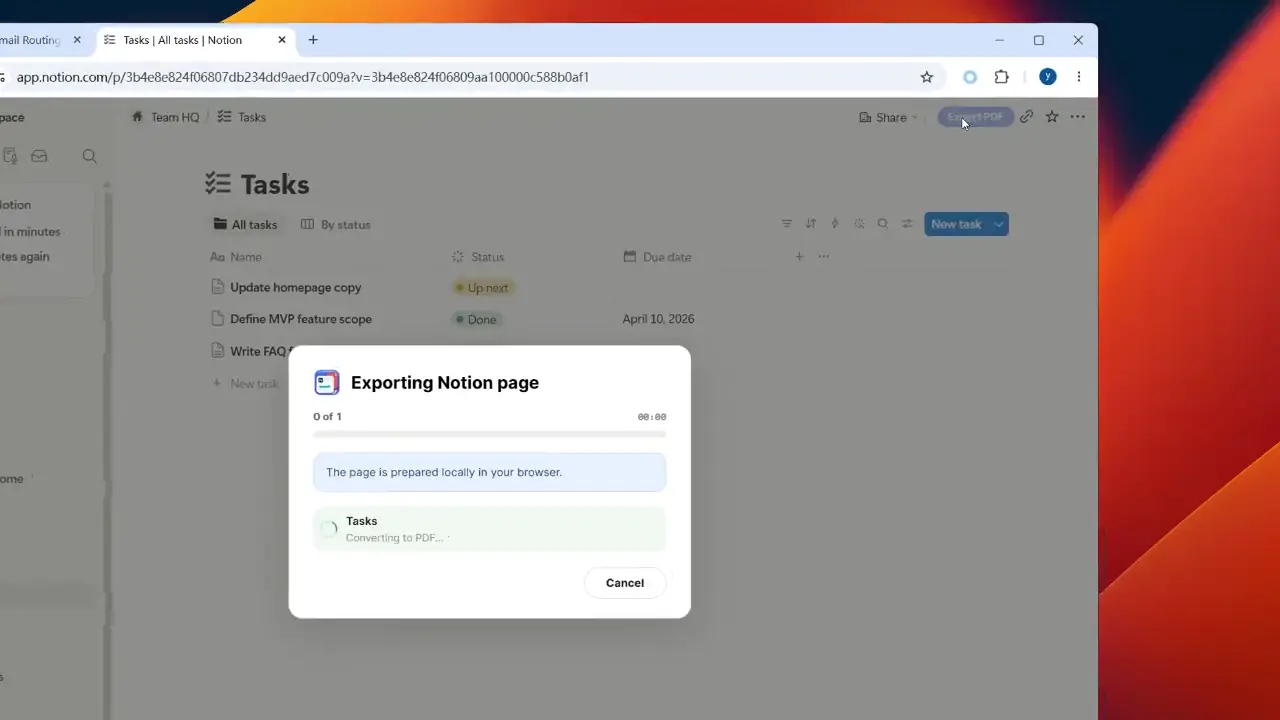
An extension cannot repair content that Notion has not rendered. Open the page, wait for blocks to settle, and expand toggles or database sections that belong in the PDF. Then use the PDF action. The source boundary should be obvious: it exports the current tab, not a silent workspace crawl.
Choose settings that match the document. Landscape helps a wide table; reduce scale only while text stays readable. Headers, footers, page numbers, and predictable filenames help handoffs and archives. Background graphics may preserve a callout but can increase file size.
Wait for the page
Let text, images, fonts, database rows, and embedded previews finish loading. A gray placeholder or spinner is a reason to wait, not a reason to export.
Choose layout rules
Select paper, portrait or landscape, margins, scale, page numbers, professional header or footer text, a watermark, and a filename template when those controls are available.
Start and monitor
Run the export once and watch for progress, completion, cancellation, or an explicit error. Avoid clicking the action repeatedly while a job is still active.
Review the PDF
Check the first page, the widest table, an image or embed, and the final page. Search for a heading and copy a short sentence to confirm that the output is real text when that matters.
Trust and fit
Understand local processing, account data, and browser compatibility
The key privacy question is which data each product part needs. Page text, images, embeds, and the generated PDF can stay in the browser while a separate service handles sign-in, entitlement, usage, payment, or support. Read the actual privacy policy before exporting confidential material, and do not attach page HTML or a full URL to support unless you choose to.
Compatibility has two layers: the extension must run in a supported Chromium browser, and the page must render in a form it can inspect. Chrome and Edge share Chromium, but managed-browser rules, private windows, permissions, and updates can differ. Test the profile and page type used for real work.

| Layer | What to verify | What it does not prove |
|---|---|---|
| Browser | Supported Chrome or Edge version and allowed extension profile | That every Notion block will export |
| Page access | You can view the page and the extension can read the active tab | That private embeds are shareable |
| Processing | The product explains where page content and the PDF are prepared | That account or billing data is never collected |
| Output | The file opens, contains expected text, and fits the page | That the live Notion page will never change |
- Use a supported desktop Chromium browser for the first test; mobile behavior is separate.
- Keep sensitive page content out of screenshots and support logs unless intentionally redacted.
Troubleshooting
Fix a Notion PDF that is blank, clipped, or missing content
When a PDF looks wrong, find the first point where the live page and file diverge. If the action never appears, check the browser profile, page host, extension permission, and loading state. If it runs but output is incomplete, compare the rendered page with the preview and identify the missing block before changing paper settings.
Use a short page as a control. If it works, add one image, table, toggle, or embed and test again. The pattern separates page length, dynamic content, cross-origin resources, and memory issues. Keep the source and failed PDF so you can report the stage and error code without uploading page text.
| Symptom | First check | Next action |
|---|---|---|
| No PDF action | Reload the page and check the extension is enabled for the tab | Review host and permission settings, then test a short page |
| Blank or partial PDF | Wait for content and reopen the page | Retry after images, fonts, and database rows finish loading |
| Clipped table or columns | Open print preview and inspect the widest area | Use landscape, wider paper, or a modest scale change |
| Missing image or embed | Compare the live block's loading and permissions | Treat external content as a dependency and keep a link or explanation |
| Download never finishes | Check browser downloads and available memory | Cancel once, retry from a fresh tab, and capture the visible error stage |
- Do not assume a valid PDF contains every database row, comment, or external embed.
- Do not retry an export repeatedly while the browser is still busy; cancellation and a fresh tab are safer tests.
- For a support request, share browser type, extension version, page block type, export stage, and error code instead of page text.
FAQ
Questions about a Notion to PDF Chrome extension
These answers cover installation, browser support, privacy, output quality, and the limits that matter before you share a PDF.
Is a Notion to PDF Chrome extension different from Notion's export menu?
Yes. Native export suits a one-off file; an extension adds repeatable browser settings, preview, filename rules, and recovery steps.
Does a Notion PDF extension upload my page?
Read the product privacy policy. A local-first extension can prepare the PDF in the browser while separate services handle sign-in, usage, or billing.
Can I use the extension in Microsoft Edge?
Often, but support is product-specific. Check the official listing and test your Edge profile; managed-device and private-window rules can differ.
Will databases, toggles, tables, and images appear in the PDF?
Rendered content often appears, but view, loading, permissions, page length, and method matter. Expand required blocks and inspect the widest and final pages.
What permissions should a PDF extension request?
An active-page exporter may need Notion-tab access to read rendered content and add an action. Read the developer explanation if scope seems broader.
What should I do when the Notion export is not working?
Reload, wait for dynamic content, check permissions, test a short page, then review settings and the download. Use the troubleshooting guide for the full order.
Reference
Check the official listing and export guidance
- Chrome Web Store: Notion PDF ExportReview the current publisher, version, permission, privacy, and support details for a comparable extension listing.
- Notion Help Center: Export your contentCheck Notion's current native export options and menu wording when the product interface changes.
Ready to test
Install the extension, then test one short Notion page
Start with a page you can safely compare. Confirm the export action, choose the document rules you need, open the PDF, and review the result before moving to a long or sensitive workspace page.