Notion PDF troubleshooting
Notion Export to PDF Not Working? Fix Common Problems
A PDF export can fail because the page is still loading, a browser permission blocks an asset, a wide block does not fit the paper, or the download never starts. Use the symptom-first checks below before repeating the same export.
Short answer
When Notion export to PDF is not working, check the page before the PDF
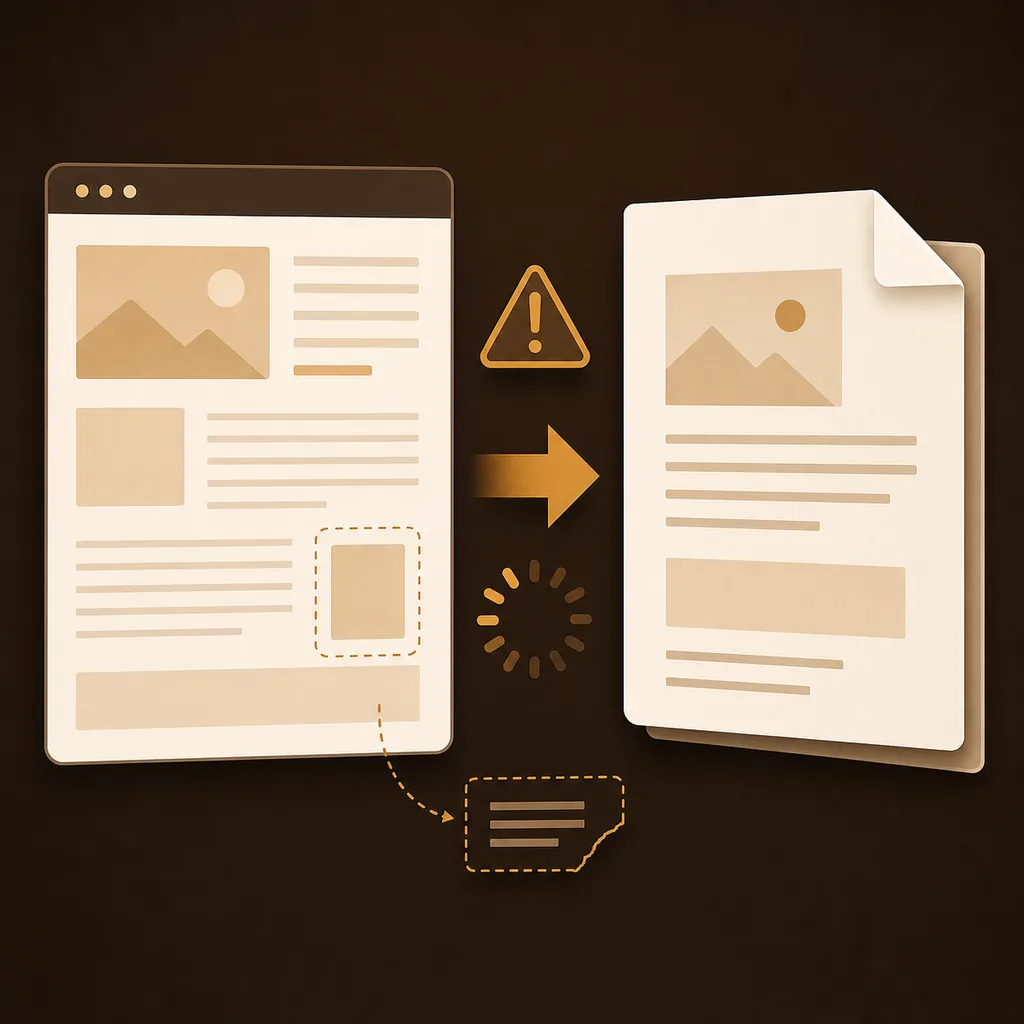
The fastest fix is usually to identify where the process stops: the Notion page is incomplete, the browser cannot access an image or embed, the print layout is too wide, or the file is created but not downloaded. A second export from the same unfinished state often produces the same result.
Open the page itself in a desktop Chromium browser, wait for visible blocks and images to settle, expand anything that must appear, and then test a small change such as portrait versus landscape. If the native Notion export menu is unavailable or still produces a broken file, browser print or the Notion to PDF extension can provide a separate, user-started path.
- Keep the original Notion page open while diagnosing the PDF.
- Check the first missing or misplaced element instead of judging only the final page.
- Do not treat a PDF as a workspace backup: it is a fixed snapshot of what the browser could render.
1. Identify the failure
Start with the symptom, not another retry
Different symptoms point to different fixes. If the file is completely empty, begin with page readiness and permissions. If only images or embeds are missing, inspect those assets separately. If the last third of a long page disappears, reduce the page load and test the widest or heaviest block first.
The table is a triage guide, not a promise that every Notion block behaves identically. Dynamic databases, external embeds, large images, and pages that are still fetching content can change the result between two exports.
| What you see | Likely cause | First check |
|---|---|---|
| Blank or nearly blank PDF | The page was not ready or the print tree was blocked | Reload the active page and wait for its main content before exporting |
| Text is present but images are missing | An image is lazy-loaded, blocked, or still downloading | Open the image in the page, wait for it to finish, and retry |
| Wide table is cut off | Portrait paper or scale leaves too little horizontal room | Try landscape and inspect the print preview |
| Only the final pages are missing | The page is too long or the browser ran out of memory | Test a smaller section or remove heavy embeds temporarily |
| PDF exists but cannot be found | The browser saved it somewhere unexpected or the download was blocked | Open the browser download panel and check its configured folder |
- Write down the exact symptom before changing several settings at once.
- Use a short duplicate or test page to separate a page-specific problem from a browser-wide problem.
- Keep a copy of the original page when the export is part of a client handoff, record, or deadline.
2. Prepare the source
Make sure the Notion page is ready to print
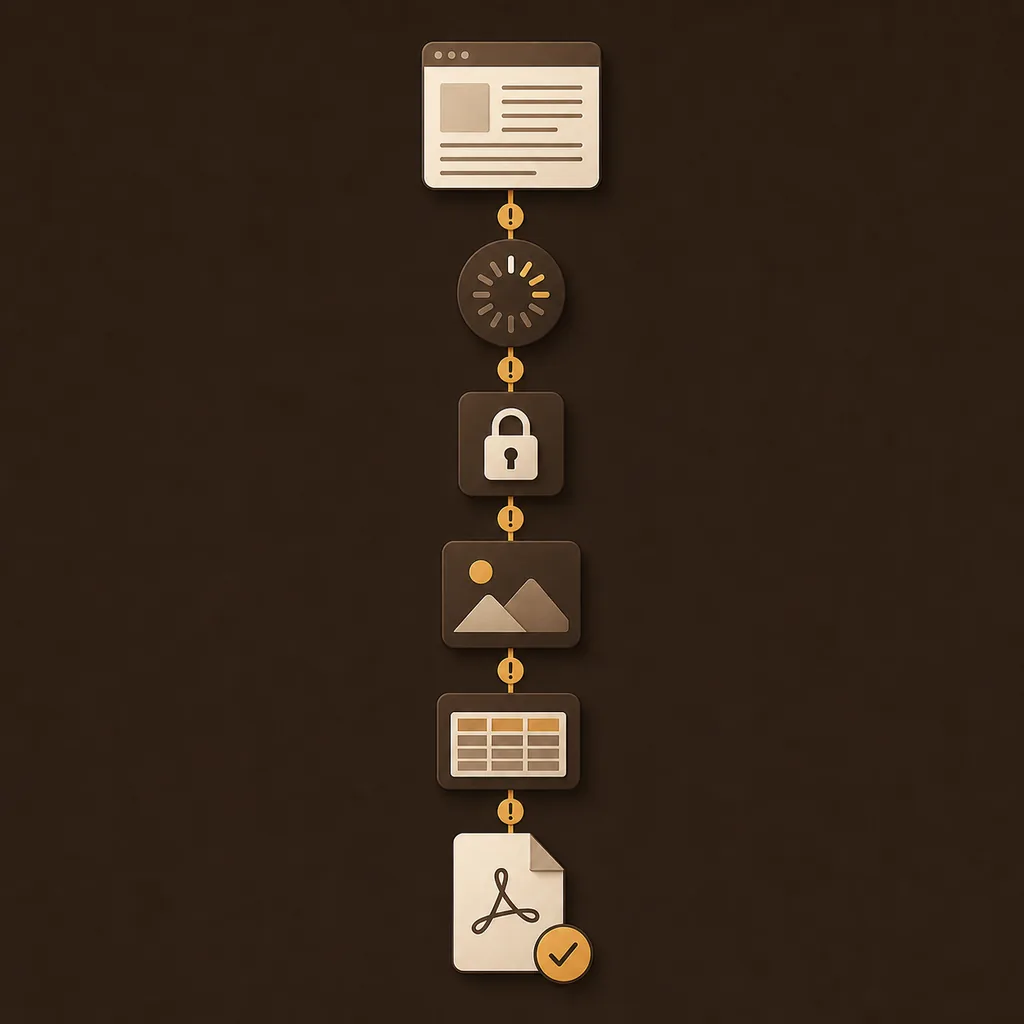
PDF creation works from the rendered page, not from an abstract page title. Open the exact page you want to preserve instead of starting from a search result, database view, or partially loaded navigation state. On a long page, scroll through the important sections once so lazy content has a chance to appear.
Private pages also depend on the current Notion session. If the page shows a sign-in prompt, permission warning, or loading placeholder, fix that in Notion first. An export tool should not bypass the access rules of the source page.
Open the page itself
Navigate to the page in the desktop Notion web app and confirm that the title and main blocks are visible before starting any export.
Wait for assets
Pause after the page appears. Check images, database rows, synced blocks, and embeds that matter to the final PDF.
Expand required content
Open toggles or collapsed sections that must be included. A collapsed block may be intentionally absent from the rendered export.
Check access
Resolve Notion login, workspace permission, browser profile, or page-sharing issues before changing PDF settings.
3. Repair incomplete output
Fix a blank, clipped, or partially rendered PDF
For a blank result, reload the Notion page and wait again before testing a simple page with one heading and one paragraph. If the simple page works, the failure is probably tied to a block, asset, or page size rather than the entire browser workflow. If every page is blank, check the extension state, browser profile, and whether the page is actually a supported Notion host.
For a partial result, compare the live page and PDF from top to bottom. The first difference is more useful than the last missing paragraph. A large embed, database view, image, or custom font can consume enough time or memory that later content is never captured.
- Reload and wait for the visible content to stabilize.
- Test with a small page to isolate the source of the failure.
- Remove or temporarily collapse heavy embeds, then test the original page again.
- For a long document, review the beginning, the widest section, and the final page after each retry.
4. Repair the page shape
Fix missing images, wide tables, and broken page breaks
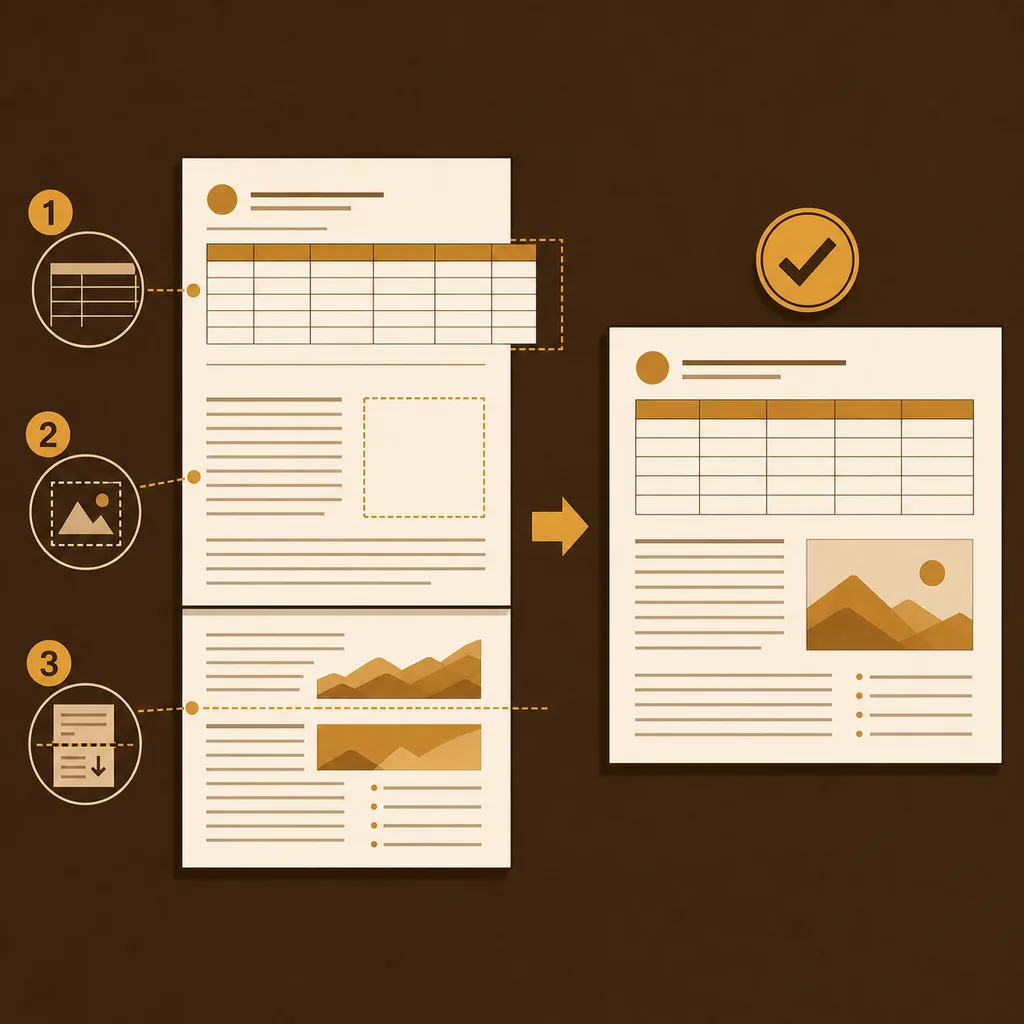
Images and tables are common sources of confusion because the text can export correctly while a visual asset does not. Make sure the image is visible in the active page, has finished loading, and is not supplied only by an embed that the browser cannot capture. For a table or database, compare its widest row with the paper size rather than assuming the PDF will scroll horizontally.
A readable PDF may need a different paper orientation or scale. Landscape is often a better starting point for wide databases and multi-column layouts; portrait is usually easier for notes and long paragraphs. Treat the print preview or finished file as the final check, because the source page and PDF have different page boundaries.
| Problem | Try first | What to verify |
|---|---|---|
| Image missing | Open the image and wait for it to load | The image is visible before export and the browser can fetch it |
| Table clipped | Use landscape or a smaller scale | The widest columns remain readable in the output |
| Page break is awkward | Change paper, margins, or scale | Headings are not stranded and key blocks stay together |
| Embed is empty | Replace it with a visible link or fallback text | The PDF explains what the dynamic embed could not preserve |
| Fonts look wrong | Wait for fonts or use a stable system font | The result remains readable on the device that opens it |
5. Check the browser path
Separate a Notion problem from a browser or extension problem
Try one controlled comparison: use the browser’s print-to-PDF dialog on the same active page, then compare it with the extension result. The native path may have fewer layout controls, while the extension can add repeatable settings and a page-focused workflow. The comparison is useful because it shows whether the failure belongs to the page render, the browser print engine, or the extension step.
If the extension button is missing, confirm that you are using a supported desktop Chromium browser and that the extension is enabled for the current profile. Do not install a second copy while diagnosing the first one; duplicate extensions and multiple browser profiles make it harder to tell which permission or version is active.
Run one native print test
Use the browser print dialog on the same page and save a short test PDF. Compare the first missing element, not just the file size.
Confirm the active extension
Check the installed extension, current browser profile, page host, and extension permission state before retrying.
Change one variable
Test portrait versus landscape, one scale change, or one asset change at a time so the result remains explainable.
Record the failure
For support, note browser version, extension version, page type, export stage, and error text. Do not send a complete private page unless support asks for a redacted example.
6. Check the product boundary
Know when the native export menu or page behavior changed
Notion’s own export menu and supported formats can change with workspace settings, permissions, product updates, or the page type. If a menu label has moved or a format is unavailable, verify the current official guidance instead of relying on an old screenshot. A missing native option does not automatically mean the page is corrupt.
When you need a repeatable active-page workflow, the Notion to PDF extension begins from the page already open in Chrome or Edge and prepares the PDF in the browser. It is useful for layout settings and repeat exports, but it is still subject to page loading, browser memory, dynamic content, and the limits of a fixed PDF snapshot.
- Check the official Notion export guidance when menu names or formats differ from an older workflow.
- Do not describe a PDF as a full backup or compliance archive.
- Keep a source-page copy and review important exports before sharing or archiving them.
FAQ
Questions about Notion PDF export failures
These answers cover the failure patterns that are easiest to miss when a PDF looks almost correct.
Why is my Notion PDF blank?
Open the page itself, reload it, and wait for the main content to finish rendering. Test a small page with simple text. If simple pages are also blank, check the browser profile, extension state, page host, and permissions before testing the original document again.
Why are images missing from my Notion PDF?
The image may still be loading, may be blocked, or may come from an embed that the browser cannot capture. Open the image in the active page, wait for it to appear, and retry. If the PDF still omits it, keep a visible link or explanatory fallback in the document.
How do I export a wide Notion table without cutting it off?
Try landscape orientation and a smaller scale, then inspect the preview or finished PDF. Wide databases may need a different paper size or a simplified view. The PDF cannot preserve unlimited horizontal space like a live Notion page.
What should I do when only the last pages are missing?
Treat it as a page-size, memory, or heavy-content issue. Wait for images and databases, test a smaller section, temporarily remove heavy embeds, and compare the first missing block after each change. Review the first, widest, and last parts of the resulting PDF.
Why did the Notion export menu disappear?
Menu availability can depend on the current Notion product, page type, workspace settings, permissions, and interface changes. Check Notion’s current official export guidance. If the native option is unavailable, browser print or a user-started extension workflow may be a practical alternative.
Does Notion to PDF upload my page content?
The product workflow is designed to prepare the selected page and generated PDF in the browser. Account, plan, payment, and usage checks are separate services. Review the current Privacy Policy and do not assume that a PDF is a backup of the workspace.
What details should I send with a support report?
Include the browser and operating system, extension version, whether you are signed in, the page type, the export stage, the exact error text, and what changed after a small test. Redact page content and URLs unless support explains why a limited example is necessary.
Official reference
Verify native export behavior with Notion’s current guidance
- Notion Help: Export your contentUse the official help page to confirm current export formats, workspace conditions, and menu behavior before relying on an older workflow.
Ready for a controlled test
Start from the page you can see
Install Notion to PDF, open the page you want to preserve, wait for its content to settle, and review the export before sharing the file.