
Practical guide
How to Download a Notion Page as a PDF
If you need to know how to download a Notion page as a PDF, start with the page itself: use Notion’s export command when PDF is available, use browser print when you need layout control, or use a browser extension for repeatable settings. This guide compares the three methods, explains what can disappear during export, and shows how to check the finished file.
Short answer
How to download a Notion page as a PDF: choose the right method
To answer how to download a Notion page as a PDF, open the exact page in a desktop browser and first look for Notion’s export option. Choose PDF when it is available, then open the downloaded file and check page breaks, images, tables, and embedded content. If the native export does not give you the layout you need, open the browser print dialog and choose Save to PDF.
For frequent exports, a browser extension can add predictable paper settings, margins, page numbers, headers, footers, watermarks, and filename rules. The important distinction is that an extension should begin with the active page you selected; it should not be presented as a silent workspace backup or a way to bypass permissions.
- Use native export for a straightforward one-off PDF when the page already looks correct.
- Use browser print when you need to control paper size, orientation, scale, or page margins.
- Use Notion to PDF when you repeat the same page-to-PDF workflow and want a local browser path with extra layout controls.
Before you start
Choose the right way to save a Notion page as a PDF
The phrase download a Notion page as a PDF can describe several different jobs. A simple reading copy, a client handoff, a printable checklist, and a repeatable archive each have slightly different requirements. Decide whether you need the page's current visual appearance, a compact file, or controls that you can reuse every time.
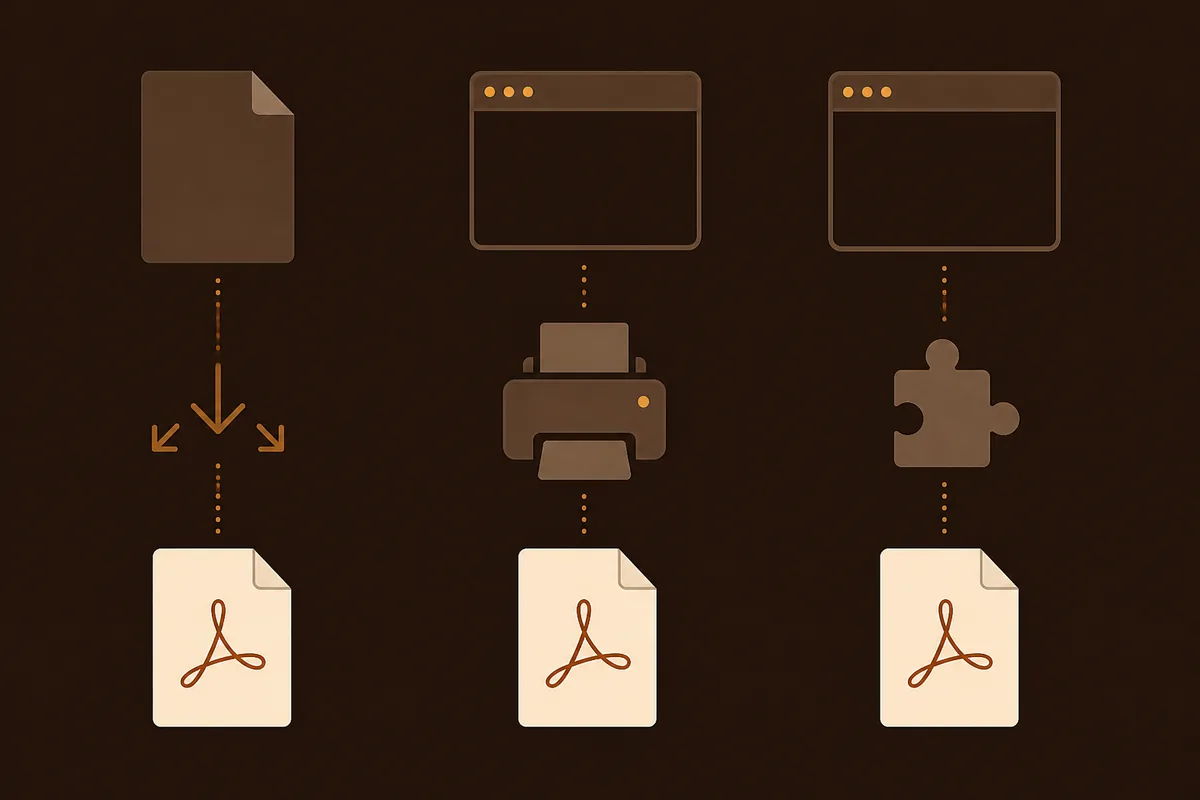
The table below is a practical decision guide. It does not replace checking the final PDF. Notion pages can contain databases, synced blocks, images, comments, embeds, and content that is still loading, so even a successful download deserves a quick visual review.
| Method | Best for | What to check |
|---|---|---|
| Notion export | A one-off copy when the page is already ready | PDF option, page breaks, images, and downloaded file |
| Browser print | Paper size, orientation, scale, and margins | Print preview, hidden editor controls, and clipped content |
| Notion to PDF extension | Repeatable exports with extra layout rules | Active page, local workflow, dynamic blocks, and extension permissions |
Method 1
Use Notion's built-in PDF export first
Notion's native export is the simplest starting point when you only need to download one page. It keeps the workflow close to the source workspace and avoids installing another tool. Menu names can change as Notion updates its interface, so look for an export or download action on the page rather than relying on one exact button location.
Open the page
Use Notion in a desktop browser, open the exact page you want to save, and wait for text, images, and database rows to finish rendering.
Open the page menu
Use the page's menu or export command. If the current workspace does not show a PDF option, do not force the wrong export type; switch to browser printing.
Choose PDF and export
Select PDF when it is available, review any paper or scale choices, and start the export. Keep the browser tab open until the download completes.
Open the downloaded file
Check the first and last pages, headings, images, tables, links, and page breaks before you share or archive the document.
- Native export is usually the least complicated choice for a short text page.
- Do not assume a database view, comment thread, or external embed will be represented exactly like the live page.
Method 2
Print the Notion page to PDF from your browser
Browser printing is often the most flexible way to download a Notion page as a PDF because it exposes the same paper controls used for other web documents. It is useful when you need portrait or landscape orientation, a specific paper size, different margins, or a quick preview of where page breaks will occur.
| Setting | Why it matters | Typical check |
|---|---|---|
| Orientation | Wide tables often need landscape | Preview the widest table before saving |
| Scale | Controls how much content fits on a page | Reduce scale only if text remains readable |
| Margins | Prevents headings or tables from feeling cramped | Use the preview to catch clipping |
| Background graphics | Some callouts or visual blocks depend on background color | Turn it on only when the design needs it |
Open the browser print dialog
Use the browser's print command while the intended Notion page is active. Confirm that the preview is showing the page, not a sign-in screen or an empty loading state.
Set paper and layout
Choose the paper size, portrait or landscape orientation, margins, scale, and whether background graphics are needed for the page design.
Inspect the preview
Scan long headings, table edges, code blocks, images, callouts, and the final page. Fix a clipped area before saving rather than trusting the file name or page count.
Save to PDF
Choose Save to PDF, select a known download location, and open the final file once to confirm that it is not an empty or partial print job.
Quality check
Check databases, images, and embeds before you share the PDF
A Notion page can look complete while some of its content is still being fetched. This is especially common with database views, synced blocks, large images, web bookmarks, video embeds, and pages that are opened from a slow connection. Exporting too early can create a PDF that is technically valid but not useful.
- Expand the toggles, synced blocks, and database sections that must be visible in the PDF.
- Wait for images and thumbnails to finish loading; a gray placeholder is a warning sign.
- Check whether an embed is an actual part of the page or only a link to an external service.
- Review page permissions before assuming another reader will see the same private content.
- Open the finished PDF on another screen or device when the document is used for printing or approval.
Method 3
Use a repeatable browser extension workflow
If you regularly turn Notion pages into PDFs, repeating the same print setup can become the slowest part of the task. Notion to PDF is designed for a user-started export from the active page in a supported desktop Chromium browser. It adds controls for paper, orientation, margins, scale, page numbers, custom header and footer text, watermarks, and predictable filename rules.
Install the extension
Add Notion to PDF to a compatible Chromium desktop browser, then return to the Notion page you want to export.
Open the page and wait
Use the active page as the source. Let the content you care about finish rendering before opening the extension action.
Set the document rules
Choose paper, orientation, margins, scale, page numbers, professional header or footer text, a watermark, and a filename pattern.
Run, download, and review
Start the local browser workflow, wait for the file to finish, and check the result for dynamic blocks, tables, images, and embeds.
- The workflow begins from the page you choose instead of silently crawling the workspace.
- The browser can keep page-content processing local while account, plan, or usage requests remain separate.
Troubleshooting
Fix a Notion PDF that looks wrong
When a PDF looks incomplete, the cause is usually visible in the page or in the print preview. Start by finding the first place where the live page and the PDF diverge. That tells you whether to wait for content, change the print settings, reopen the page, or use another export route.
- Blank or partial page: reload the Notion page, wait for the content, and retry from the active page.
- Clipped table: switch to landscape, reduce scale slightly, or use wider paper before saving again.
- Missing image: confirm that the image finished loading and that the viewer has permission to see it.
- Missing embed: treat the embed as an external dependency and include a link or text explanation if the PDF must stand alone.
- Unexpected headers or controls: use print preview or the extension's print-focused workflow rather than copying the page into another editor.
FAQ
Questions about downloading a Notion page as a PDF
These answers cover the most common choices and failure points after you start an export.
Where does a downloaded Notion PDF go?
A native export or browser print job normally uses the browser's configured Downloads folder unless you choose another location. Check the browser download panel and open the file instead of relying only on its filename.
Why can I not see a PDF export option in Notion?
Menu labels and available export choices can vary by page context, workspace settings, and product changes. If a PDF option is not available, use the browser print dialog and inspect the preview before saving.
Will a Notion database appear in the PDF?
Visible, fully rendered database content may appear, but the result depends on the view, loading state, permissions, and export method. Check the database section in print preview or the finished PDF rather than assuming every row or property was captured.
Do I need an account to use Notion to PDF?
The extension can provide a limited free export path before asking you to sign in for continued account or plan access. The page-to-PDF workflow is designed to start from the active page in the browser, and the product page explains the current allowance and pricing path.
How do I save a long Notion page as a PDF without missing content?
Wait for the page, images, database rows, toggles, and embeds to finish loading. Then check the first page, the widest section, and the last page in the preview or finished PDF.
Reference
Keep the official export guidance nearby
- Notion Help Center: Export your contentCheck Notion's current menu names and export behavior when the product interface changes.
When you export often
Make the next Notion PDF easier to repeat
Open the page you need, choose a layout, and keep the export anchored to the browser workflow. Review the result before sharing important project, study, or operations documents.